
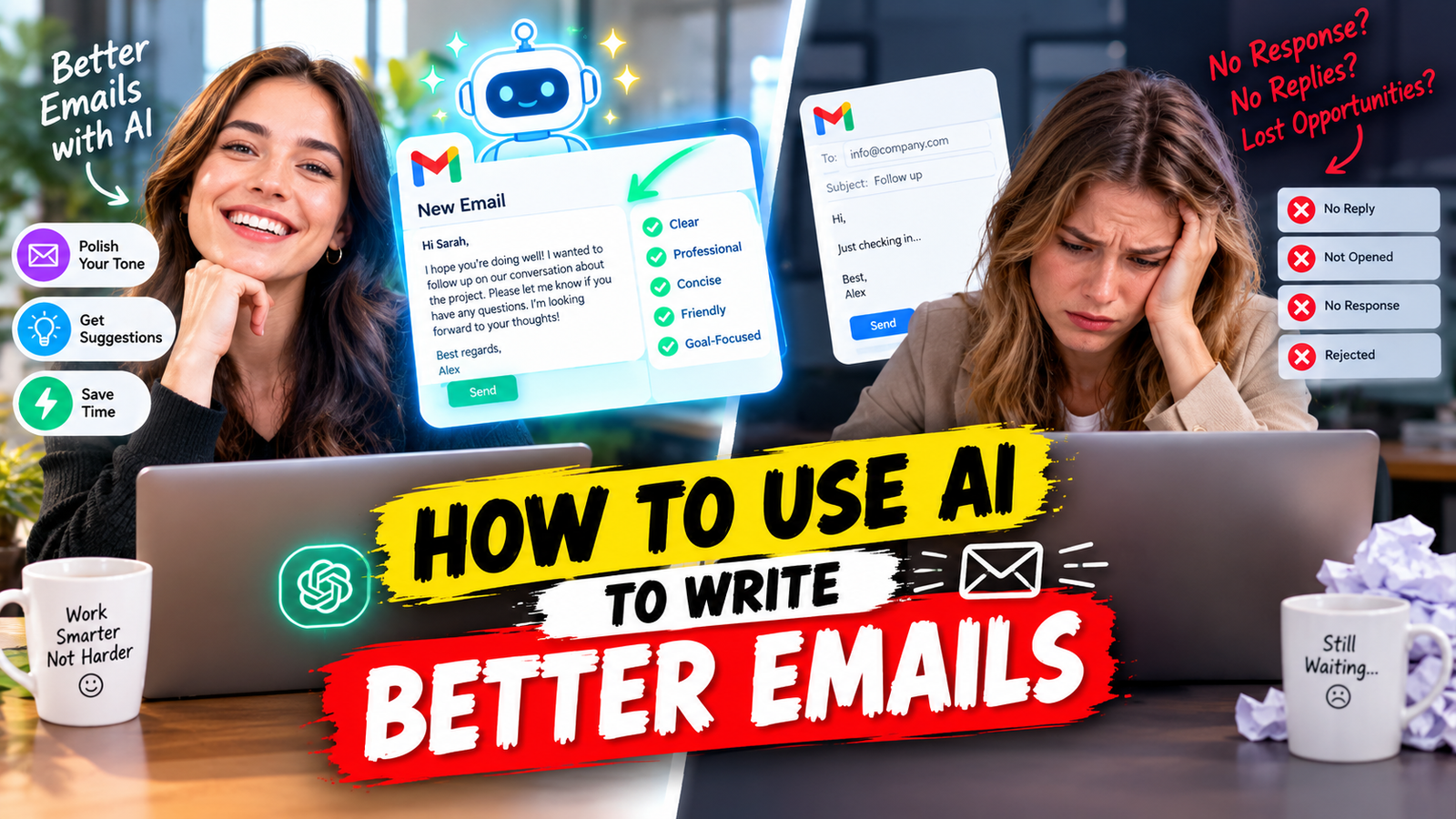
You probably write emails regularly, but finding the right words can still take more time than it should. AI can help you draft, shorten, improve, or rewrite an email, but simply asking it to “write an email” often produces something generic and robotic. In this guide, you’ll learn how to give AI the right context, choose the right tone, and turn its first draft into an email that still sounds like you.
Key Takeaways
- You can use AI to draft, refine, summarize, organize, and polish emails, but you bear full responsibility for the final message.
- By using effective AI prompts, you can precisely define the email’s purpose, context, key points, tone, and length or format.
- AI can easily handle routine email tasks such as sending follow-ups, making requests, providing introductions, offering apologies, sending reminders, and crafting professional responses.
- It is essential to review AI-generated emails, as the tool may provide incorrect information or use language that is overly formal or out of context.
- Adding a personal touch to AI-generated drafts is crucial to maintain your unique style and ensure the email does not sound robotic.
- The right approach to writing emails with AI is: Think → Provide Context → Draft → Refine → Personalize → Review → Send.
- AI should be used solely to assist with communication; it should not create facts, promises, prices, dates, or personal experiences.
What Does It Mean to Use AI to Write Better Emails?
Using AI to write emails simply means asking an AI tool to help you draft, improve, organize, or rewrite a message, although the sender remains responsible for the accuracy of the final communication. Instead of staring at a blank screen, you can explain your situation to an AI assistant and ask it to generate a useful initial draft.
For example, if you need to ask your manager for two days of leave, you could give AI the dates, reason, and preferred tone. It can turn those details into a clear draft that you can review and personalize.
Modern email tools can also work directly inside email applications. For example, Gemini in Gmail can draft new emails and refine existing text for tone and clarity. Source: Google Help
Why Should You Use AI to Write Better Emails?
AI can save you time and make it easier to turn your thoughts into a clear email. You still decide what the final message should say . It’s especially helpful when you know what you want to say but can’t quite find the right words.
For example, imagine receiving a long client email with five separate questions. Instead of replying to each point randomly, you can give AI your notes and ask it to organize the response into five clear sections.
AI can also help you:
- shorten unnecessarily long emails
- improve grammar and spelling
- change a casual message into a professional one
- make a message friendlier
- turn bullet points into a complete email
- write a polite follow-up
- simplify complicated wording
The goal is not to make every email sound formal. The goal is to make your message clear, appropriate, and easy to understand.
You may also like this article :- Best AI Tools for Office Use In 2026
How Do You Use AI to Write an Email Step by Step?
A practical AI email-writing process involves defining the goal, providing context, generating a draft, improving the language, personalizing the message, checking the details, and reviewing it before sending.
1. Identify the Purpose
First, decide what you want the email to accomplish. Are you requesting something, sharing an update, following up, apologizing, or asking a question?
For example: “I need my manager to approve my leave for October 14 and 15.”
2. Tell AI Who Will Receive It
Next, clarify who the recipient of the email is and your relationship with them. An email to your manager should usually sound different from an email to a close colleague.
Next, clarify who the recipient of the email is and what your relationship with them is. Generally, an email written to your boss should differ from an email sent to a close colleague.
3. Provide the Important Context
Then give AI the facts it needs. Context is what separates a useful prompt from a generic one.
Include relevant dates, names, deadlines, previous conversations, and anything the recipient needs to know.
4. State What You Want the Recipient to Do
Tell the AI what you want the recipient to do after reading the email. For example, expecting the other person to schedule a meeting, accept a request, send a document, or answer a question.
5. Choose the Tone and Length
Tell the AI what tone you want—friendly, formal, apologetic, direct, or something in between. You can also direct it to draft a concise email instead of a detailed one.
6. Generate, Review, and Personalize
Finally, ask AI for the first draft, then check it yourself. Never treat the first AI draft as the finished email.
What Information Should You Give AI Before Writing an Email?
To write excellent AI email prompts, you should specify the recipient’s name, the purpose, the context, necessary information, the desired tone, and the preferred format or word count. A simple way to remember this is:
Context + Recipient + Goal + Key Details + Tone + Format
For example:
“Write a short, friendly email to my manager requesting leave on October 14 and 15. I have completed my urgent tasks and will hand over the remaining work to Sam before I leave. Ask for approval and keep the tone professional but natural.”
Compare that with:
“Write an email to my manager asking for leave.”
The second prompt gives AI very little to work with. The first explains exactly what you need.
You may also like this article :- Master the Perfect ChatGPT Prompt Formula
How Can AI Help With Different Types of Emails?
The same approach works for almost any type of email—you just need to change the details and tone. The key is to provide it with the right information and context.
Email type | Useful AI instruction |
Follow-up | “Write a polite follow-up without sounding pushy.” |
Meeting request | “Suggest a short meeting request with two possible times.” |
Job application | “Write a concise application email based on my resume.” |
Apology | “Make this apology sincere and take responsibility without overexplaining.” |
Client reply | “Make this response professional, clear, and reassuring.” |
Reminder | “Write a friendly reminder that does not sound demanding.” |
Thank-you | “Write a warm but professional thank-you email.” |
For example, if a client has not responded to your proposal for a week, you could ask:
“Write a short follow-up to a client who received my proposal last Tuesday. Ask if they have had a chance to review it and offer to answer any questions. Keep it polite and not pushy.”
Why “Write a Professional Email” Usually Doesn’t Work
If you ask an AI tool, “Write a professional email to my client,” the result may sound too general. It does not know what happened, what you want, or how you want the message to sound.
Here is a weak prompt:
Write a professional email to my client.
Now compare it with a better prompt:
Write a short email to a client who hasn’t replied to our proposal from Tuesday. Ask whether they had a chance to review it. Don’t pressure them, and offer to answer questions.
The second prompt gives the AI useful details. It explains who the email is for, what happened, what you want to ask, and what tone to use. Because of this, the AI can write a message that feels more natural and helpful.
So, the difference is not always the AI tool. The real difference is the information you give it. Think of AI like a student: the clearer your instructions are, the better its answer will be. Instead of asking for a “professional email,” explain the situation, goal, length, and tone you want.
How Can You Make AI-Written Emails Sound Human?
The easiest way to make an AI-written email sound human is to give it specific details, keep the tone natural, and then edit the draft yourself.
Avoid phrases that sound overly polished or unnatural, such as “I hope this email finds you in the best of health and spirits” when a simple “Hope you’re doing well” would work.
Try a prompt like this:
“Rewrite this email so it sounds natural and conversational. Keep my original meaning, remove unnecessary formal language, and avoid corporate jargon. Make it sound like a real person wrote it.”
Microsoft’s Copilot in Outlook also provides options to adjust tone and length, and Microsoft allows eligible users to give Copilot custom instructions for how their emails should sound. Source: Microsoft Support
You may also like this article :- Best AI Tool for Writing Emails at Work
What Should You Never Let AI Do in Your Emails?
AI should never invent facts, commitments, prices, dates, policies, promises, or personal experiences in an email. Always check important details before pressing Send.
For example, if you tell AI that a customer is waiting for delivery on Friday, make sure the final email does not accidentally change Friday to Thursday.
You should also be careful with confidential business, financial, legal, customer, or personal information. Follow your organization’s rules before entering sensitive information into an AI tool.
Microsoft’s own Outlook guidance similarly tells users to review AI-generated drafts and edit them before sending.
You may also like this article :- How Professionals Are Using ChatGPT at Work (Real Examples)
Which AI Tools Can Help You Write Better Emails?
You can use a general AI assistant or the AI tools built into your email app. Both can help you draft, shorten, reorganize, or improve a message. The right option mostly depends on which email service you already use and what you want AI to help with.
For example, Gemini can help Gmail users draft and refine messages, while Microsoft Copilot can draft and coach emails inside Outlook.
You can also use any general AI assistant such as ChatGPT, Gemini, Claude, Grok and Perplexity AI for tasks like:
“Turn these five bullet points into a professional email.”
“Make this email 40% shorter while keeping every important detail.”
“Rewrite this reply so it sounds confident but not rude.”
You may also like this article :- AI Tools Every Beginner Should Know in 2026
What’s Next: Build Your Own AI Email Workflow
A simple AI email workflow is Think → Give Context → Draft → Improve → Personalize → Check → Send. After using this workflow a few times, you’ll spend much less time staring at a blank email.
Save some ready-made prompts for recurring situations, such as follow-ups, scheduling meetings, client responses, and leave requests. You can then use their basic structure and simply update the necessary details each time.
You may also like this article :- How AI Is Changing Jobs (And How to Stay Ahead)
Conclusion
AI can assist you in communicating clearly, but it should not replace your personal thinking or unique style. Use it to overcome writer’s block, organize your thoughts, refine your language, and simplify tasks like drafting repetitive emails.
Before sending an important email, read it once yourself and check the details. Remove anything you wouldn’t normally say yourself, and check all the necessary information.
The best AI-assisted email isn’t the one that sounds the most polished. It’s the one that is clear, appropriate for the reader, and still sounds like you.
Written by: Vishal – AI Researcher & Blogger with 4+ years of experience making artificial intelligence simple, practical, and accessible for everyone.
Reviewed by: Vishal – Content reviewer responsible for verifying facts, figures, dates, and names using reliable and original sources.
FAQs
1. Can AI write an entire email for me?
Yes. AI can create a complete first draft if you give it the purpose, recipient, important details, tone, and desired length. However, do not send the draft immediately without reviewing it. Carefully verify facts, dates, names, and commitments, and finally, add some personal touches so that it reflects your own writing style.
2. What should I tell the AI before asking it to write an email?
Provide it with sufficient information so that it can understand your exact needs. At the very least, clarify to the AI who the email is for, the purpose of writing it, the key points, what you expect from the recipient, the desired tone, and the intended length of the email. For example, instead of saying “Write an email asking for leave,” explain the dates, your situation, and the tone you want. The more information you share about the work, the better and more useful the initial draft is likely to be.
3. How can I make an AI-written email sound more like me?
Do not use initial AI-generated drafts without making any changes. Instruct the AI to make the language sound natural and to remove overly formal or corporate wording. Afterward, be sure to read the email yourself and simplify any sentences that sound artificial. It is also essential to add your own insights and personal speaking style. Your goal should not be to decorate or over-polish the email, but rather to make it clear, simple, and appropriately tailored to the recipient.
4. Can I trust AI to get the details of my email right?
Not completely. AI can sometimes alter facts or invent information, so you should double-check important details before sending an email. Pay close attention to names, dates, prices, timelines, commitments, terms, and other critical information. For example, if you instructed the AI that a customer’s delivery is scheduled for Friday, ensure the final draft does not mistakenly state Thursday. Additionally, avoid using confidential or sensitive data unless your company policy permits it.
5. Which AI tools can I use to write better emails?
You have several options to choose from. AI features built into email services such as Gmail’s Gemini and Outlook’s Microsoft Copilot—can assist you in drafting and refining messages. Additionally, you can use general AI assistants like ChatGPT, Gemini, Claude, Grok, or Perplexity to compose, summarize, reorder, or rewrite emails. The best choice for you depends on the software you currently use and the specific type of email-related assistance you require.
I already use multiple AI tools to write email for my office work but after reading this blog it really helpful for me to get better email with the help of AI
thanks for the better suggestion
The core technical friction highlighted in smoothaiflow – best ai tools, guides & productivity tips consistently boils down to optical flow artifacts when dealing with stylized, burned-in subtitles. Traditional spatial blurring inevitably destroys the underlying motion texture, which makes temporal inpainting engines like remove captions from video a compelling benchmark for reconstructing native video frames without edge fringing. When localizing creator clips with complex typography, does your team prioritize temporal coherence across keyframes or edge-feathering precision first?