
You probably spend part of your workday replying to emails, preparing reports, or organizing information. AI can help with some of these tasks, so you don’t have to start from scratch every time. You’ll also learn how to choose a tool that fits your work and how to use it without putting company information at risk.
You can also get started using a simple approach. Many tools allow you to connect various steps together without the need for programming—making it accessible even to those without a technical background. By the end of this guide, you will be able to better organize your daily tasks, save valuable time, and minimize errors, all while maintaining full control over your work.
Key Takeaways
- AI automation helps handle repetitive tasks such as drafting emails, summarizing files, and categorizing work.
- A typical workflow follows a trigger, input, AI-based processing, an action, and human review.
- Start with a routine task that has a clear result, little risk, and an outcome you can check.
- AI assistants handle individual tasks, whereas automation platforms can connect various applications.
- A quick human review can catch mistakes before they reach customers or affect business records.
- For simple tasks based on fixed rules, traditional automation can provide better results than AI.
What Is AI Automation at Work?
AI automation at work means using artificial intelligence to perform or assist with repeated workplace tasks through a process you can reuse. For example, instead of manually writing a summary for every meeting, you can use an AI tool to convert the discussion into a list of key decisions, questions, and important action items.
A typical workflow follows five steps:
Trigger → Input → AI processing → Action → Human review
Traditional automation follows rules you set in advance. AI can also help make sense of an email, summarize a report, or sort customer messages by topic.
For routine tasks—such as moving data between columns in a spreadsheet—simple automation may be enough.
Why Does AI Automation Matter at Work?
AI can take some routine work off your plate and give you more time for decisions that need your attention. For example, a salesperson could use AI to draft a follow-up email after a product demo, then personalize it before sending.
However, automation is not always beneficial. Consider how frequently a task is repeated, how much time it takes to complete, and the effort required to implement a new workflow. Not every automation is worth keeping. If checking and fixing the results takes as long as doing the task yourself, try a simpler approach.
Which Repetitive Tasks Can You Automate With AI?
AI is particularly useful when a task involves reading, sorting, summarizing, or rewriting information that changes each time. Common examples include:
- Emails: Categorize incoming messages and draft responses for them.
- Meetings: Summarize the discussion and list the decisions, action items, and deadlines.
- Documents: Pull out the main findings and summarize lengthy reports.
- Spreadsheets: Classify written data and uncover the patterns hidden within it.
- Marketing: Turn an approved blog post into social media drafts.
- Customer support: Group inquiries by topic and outline how to respond to them.
- Project management: Turn meeting notes into a task list and a short project update.
For example, a manager might receive a two-page summary of a long report, while also having the option to study the original document before making a decision. When a task involves sensitive information, financial matters, employment-related decisions, legal obligations, or significant commitments made to clients, ensure that the relevant individuals are kept informed and involved in the process.
How Do You Automate Repetitive Tasks With AI Step by Step?
You don’t need to automate your whole workday at once. Pick one task, build a simple workflow, and test it before relying on it.
- Choose one task you repeat often, such as preparing your weekly project report.
- Write down how you do the task now: what starts it, what information you need, and what the finished result should look like.
- Decide whether the task really needs AI and then use AI for tasks like summarizing or explaining content, while relying on standard automation for processes governed by fixed, predefined rules.
- Check the tools your workplace already provides before paying for something new.
- Tell the AI what to do, what the result should look like, and which details it must preserve. For example, ask it to keep names and deadlines exactly as they appear in your notes.
- Test the workflow with sample information. Check for missing details, factual errors, and formatting problems before using it for real work.
- Follow a review process. Keep important emails or records in a draft state first, and finalize them only after obtaining the necessary approval.
- Check whether the workflow saves time, reduces mistakes, and remains easy to maintain.
Say you’re preparing a weekly update from meeting notes. Ask AI to sort the information into four sections: Work Completed, Current Priorities, Obstacles, and Next Steps. Check the draft before sending it to your team.
For better results, see our guide to Master the Perfect ChatGPT Prompt Formula
What Are the Best AI Tools for Workplace Automation?
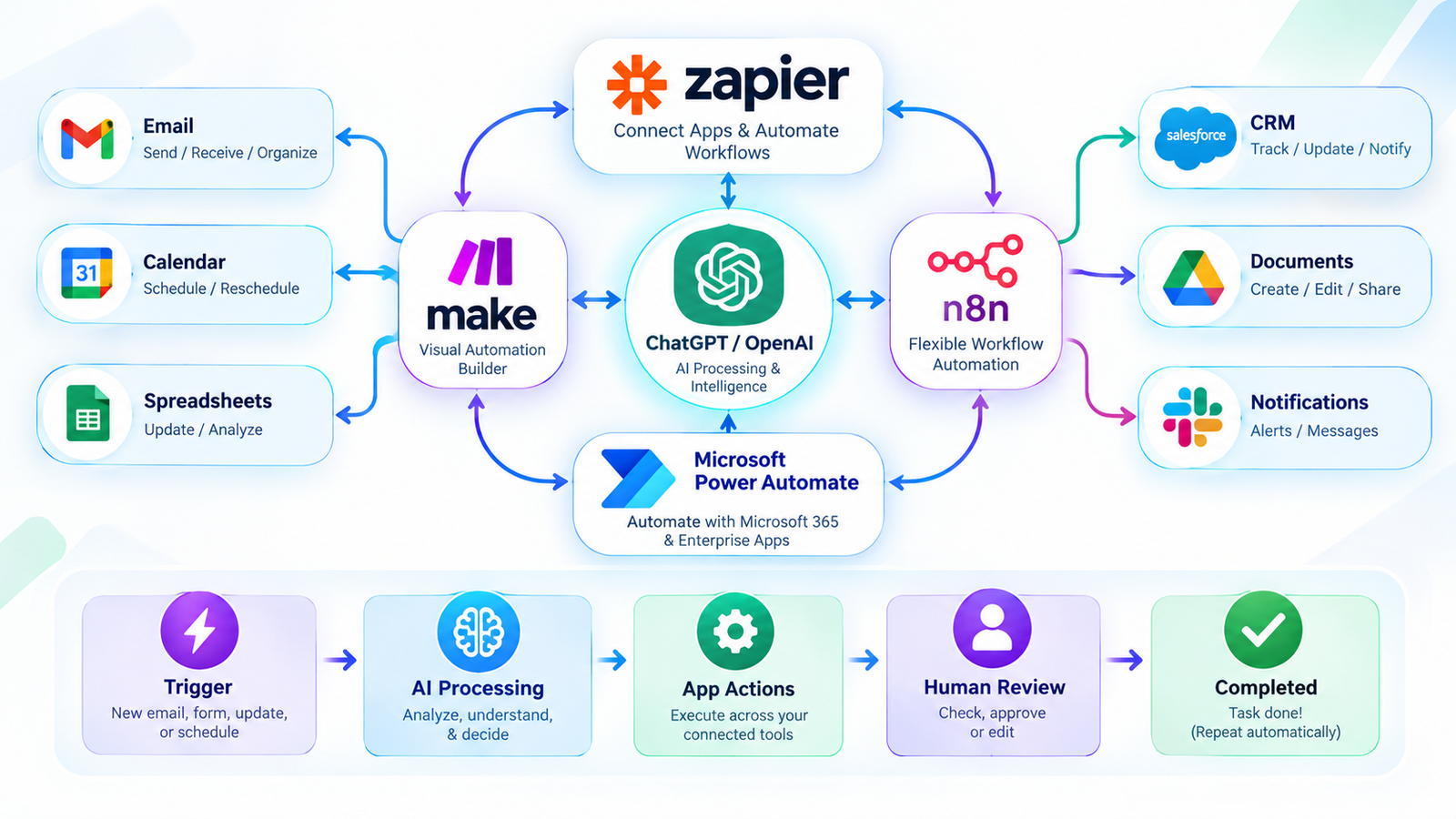
The right tool depends on the task, the apps you already use, and your workplace’s data policies.
Tool | Best for | Skill level |
ChatGPT | Drafting, summarizing, and organizing information | Beginner |
Microsoft Copilot | AI assistance within supported Microsoft apps | Beginner |
Google Workspace Studio | Creating workflows across supported Google Workspace services | Beginner |
Zapier | Connecting apps and adding AI steps to workflows | Beginner to intermediate |
Microsoft Power Automate | Automating business processes across supported apps and services | Beginner to intermediate |
Slack Workflow Builder | Simple workflows and notifications inside Slack | Beginner |
Notion AI | Working with knowledge, notes, and documentation in Notion | Beginner |
Asana AI | Supporting project and task workflows in Asana | Beginner to intermediate |
n8n | Building customizable workflows, including AI-powered workflows | Intermediate to advanced |
Claude with Zapier | Using Claude for text analysis, summaries, and drafts inside connected workflows | Intermediate |
Make | Building visual, multi-step app workflows | Intermediate |
For example, you can use Google Workspace Studio to build flows for supported Google services, or use Zapier to connect different apps. Check which integrations and features your account supports before setting up a workflow.
If you’re mainly looking for tools to handle emails, reports, and meetings, see our guide to Best AI Tools for Office Work.
What Are Practical Examples of AI Automation at Work?
Here are four ways AI automation could fit into a normal workday.
- Summarize meeting notes
- Trigger: A meeting transcript becomes available.
- AI task: Pull out the decisions, unanswered questions, and tasks people agreed to complete.
- Output: A structured summary for the team.
- Human checkpoint: Confirm names, deadlines, and responsibilities before sharing.
- Prepare email reply drafts
- Trigger: A new email arrives in a selected category.
- AI task: Identify the request and draft a reply using approved guidance.
- Output: An unsent draft in your email application.
- Human checkpoint: Check the facts and tone before sending.
- Organize customer requests
- Trigger: A customer submits a support message.
- AI task: Sort it into a category, such as a billing question, a technical problem, or a general enquiry.
- Output: A categorized support item for the right team.
- Human checkpoint: Review urgent or uncertain cases rather than relying entirely on the AI classification.
- Repurpose an approved blog post
- Trigger: A new article is marked as published.
- AI task: Create draft social posts and a newsletter outline from the article.
- Output: Content drafts for the marketing team.
- Human checkpoint: Verify claims, links, tone, and platform requirements.
For more workplace examples, see How Professionals Are Using ChatGPT at Work
Can You Automate Office Tasks With AI Without Coding?
Yes. Many everyday tasks can be automated without learning to code, using tools that connect apps and run predefined steps. For instance, Zapier’s workflow builder can assist users in defining a process, setting out its steps, testing it, and refining the outcomes.
However, ‘no-code’ does not mean that you won’t have to set anything up at all. You’ll still need to connect your accounts, set permissions, test the workflow, and decide what should happen if a step fails.
What Are the Risks of AI Automation at Work?
A poorly configured workflow can produce a wrong summary, send a request to the wrong team, or put information in the wrong place.
To reduce these risks:
- Protect confidential data: Follow your organization’s rules before uploading documents or connecting external tools.
- Limit permissions: Give workflows access only to the information and actions they need.
- Require approval: Keep human review for external emails, financial actions, and consequential decisions.
- Test unusual cases: Check what happens when information is missing, unclear, or incorrectly formatted.
- Monitor performance: Check failed runs, review mistakes, and fix recurring problems.
For example, AI might draft a polite reply promising a refund that your company doesn’t offer. A human review can catch that before the customer receives it. Keeping the message as a draft gives an employee the chance to catch that mistake.
Read our guide to Is AI Safe to Use for Work, Study, and Personal Tasks?
What’s Next? Automate Your First Workplace Task
Start with one small task you repeat regularly instead of trying to automate your whole day.
Write down three tasks you do every week. For each one, note how long it takes and what could go wrong if the result is incorrect. Select a task that is performed regularly, carries minimal risk, and is easy to verify.
Next, try performing this task yourself using an AI assistant. If the results are accurate across several tests, consider connecting the steps so they run automatically. Before automating the entire workflow, be sure to track the time saved and the reduction in errors.
Conclusion: Let AI Handle Repetition While You Focus on Meaningful Work
AI automation works best when it solves a clear problem and leaves people in control of important decisions. Pick a task you repeat often, use a tool that fits your current workflow, and make changes based on what works.
You don’t need to automate everything. Start with the tasks that waste the most time and keep the process simple.
Written by: Vishal — AI Researcher & Blogger with 4+ years of experience making artificial intelligence simple, practical, and accessible for everyone.
Reviewed by: Vishal — Content reviewer responsible for verifying facts, figures, dates, and names using reliable and original sources.
FAQs
1. Can I automate repetitive tasks at work with AI without knowing how to code?
Yes. You can use tools like ChatGPT to summarize documents or draft emails without coding. If you want tasks to run automatically across different apps, platforms such as Zapier or Make can connect supported services. Start with a simple workflow and test it before relying on it.
2. What tasks should I automate first with AI at work?
Start with a task you do often, that takes a noticeable amount of time, and whose result is easy to check. For example, you could summarize meeting notes, prepare weekly report drafts, or categorize incoming emails. Avoid starting with sensitive or high-risk tasks, such as financial decisions or messages that make important commitments to customers.
3. Which AI tools are best for automating everyday office work?
There’s no single best tool for every workplace. Choose one based on the task you want to automate and the apps your team already uses. ChatGPT is useful for drafting and summarizing information, Microsoft Copilot can assist with supported Microsoft 365 workflows, and Google Workspace Studio offers automation options for supported Workspace tasks. Zapier and Make can connect compatible apps so that a process runs repeatedly with less manual effort.
4. Is it safe to let AI automatically send emails or update work records?
It can be reasonable for a tested, low-risk workflow, but don’t let AI send important messages or change sensitive records without the right checks. Start with drafts and require approval for actions that could affect customers or your business.
5. How can I tell whether AI automation is actually saving me time at work?
Compare the time it took before automation with the time it takes now, including setup, checking the output, and fixing errors. If the workflow saves time over several runs without creating extra problems, it’s probably worth keeping.