
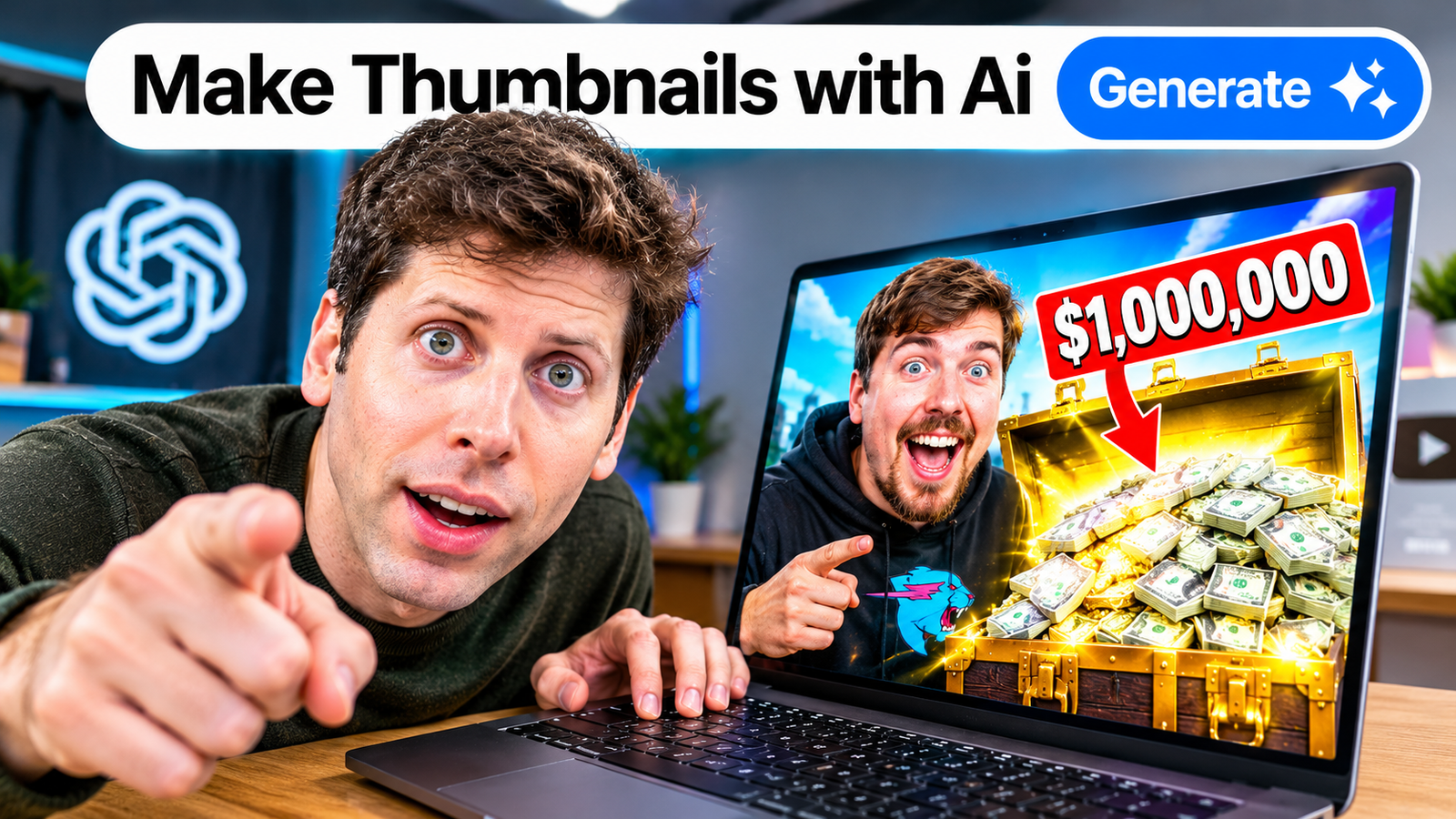
You may have noticed that a great YouTube thumbnail can make a video stand out from the crowd, even when there are many similar videos in search results. However, creating a professional thumbnail involves more than just producing an attractive image. In this guide, you’ll learn how to use AI to make YouTube thumbnails, improve your designs, and make them more appealing even if you have no graphic design experience.
Key Takeaways
- AI thumbnail tools can provide fresh ideas for images, backgrounds, and designs for YouTube videos.
- By providing detailed prompts, you can create visuals that align with your video’s topic and audience.
- Design editing tools like Canva allow you to add the right text and branding, as well as make final refinements.
- Thumbnails with simple, clear designs are easy to view and understand on mobile screens.
- Always check AI-generated images for visual errors, strange details, and unwanted text.
- YouTube’s thumbnail testing feature allows creators to see how real viewers respond to their designs.
What Is an AI-Generated YouTube Thumbnail?
An AI-generated YouTube thumbnail is an image created or enhanced with the help of artificial intelligence to visually represent the video’s actual subject matter. You can generate new images using text prompts, improve existing designs, or combine AI-generated images with any editing tools.
For example, if your video is titled “7 AI Tools That Save You Hours Every Week,” you could generate a realistic laptop scene with a person working beside a glowing digital interface. You could then add a short headline in an editor.
Keep in mind that creating an image with the help of AI and designing a thumbnail are two distinct tasks. AI can assist in generating visuals, whereas an editor gives you better control over text, layout, logos, and colors.
If you want to generate AI image for free then you can check out our this blog Best AI Image Generator Free no Sign Up in 2026.
Why Should You Use AI to Make YouTube Thumbnails?
AI technology can help you think of new thumbnail ideas, tailor images to your needs, and try out different thumbnail styles, all without you having to create each design from scratch.
For example, a beginner making a cooking video might generate three concepts: a close-up of the finished dish, a before-and-after cooking comparison, and a person holding the meal. Comparing these options helps you choose the image that best shows viewers what the video offers.
AI is extremely useful when you want to create a unique scene that is difficult to capture with a camera. However, it can lead to distorted facial features, awkward-looking hands, misplaced objects, or an unbalanced composition. AI can speed up the process of creating thumbnails, but it does not guarantee more clicks or views.
How Do You Create a YouTube Thumbnail With AI Step by Step?
To create a good thumbnail with AI, start with a clear idea, generate a few options, refine the best image, add your text, and check the finished design.
Step 1: Identify the video’s main promise
First, write down what viewers will learn or experience by watching your video. Your thumbnail should communicate that value quickly.
For example, a video about saving time with AI might focus on a busy person, a laptop, and a simple time-saving visual. You don’t need to represent all seven tools in the thumbnail.
Step 2: Choose one visual concept
Next, determine what viewers should notice first. This is your focal point: the person, object, or detail viewers should notice first.
For an educational video, use one recognizable subject and a simple background. For gaming content, a dramatic character or memorable game moment might work better.
Step 3: Choose an AI tool and write a prompt
Choose an AI image generator or design tool that fits your budget. In your prompt, describe the subject, background, lighting, mood, and where you want to leave space for text.
Weak prompt: “Make a cool AI thumbnail.”
Better prompt:
Create a YouTube thumbnail for a video titled “7 AI Tools That Save You Hours Every Week.” Show a focused creator working on a laptop with a clean, modern AI-inspired interface. Use dramatic but realistic lighting, strong contrast, one clear focal point, and a dark uncluttered background. Leave empty space on the left for a short headline. Use a wide 16:9 composition. Do not include text, logos, or watermarks.
The second prompt gives the AI a clearer direction. For more guidance, you can read this article [Master the Perfect ChatGPT Prompt Formula].
Step 4: Generate and refine several options
Once you have your first image, generate a few variations. Change the position of the main subject, keep the background simple, or alter the lighting.
For example, if the laptop screen contains strange symbols, ask the tool to create a simpler screen. If the image has too many objects, request a cleaner composition with one dominant subject.
Step 5: Add text and branding
After that, import your chosen image into a design tool like Canva or Adobe Photoshop. Write a short headline only if it helps clarify the meaning of the video.
For the example above, “SAVE HOURS WITH AI” is more useful than repeating the entire video title. Use large, readable lettering and enough contrast between the text and background.
Step 6: Check the thumbnail before exporting
Finally, shrink the design to roughly the size it would appear on a phone screen. Can you understand the main idea straight away? Is the text easy to read? Does the image accurately represent the video?
YouTube recommends a 16:9 aspect ratio for regular video thumbnails and supports formats such as JPG and PNG. Its current custom thumbnail guidance explains the applicable file-size limits and requirements.
Which AI Tools Can Help You Make YouTube Thumbnails?
AI image generators create images based on your instructions or prompts, while design editors help refine those images to produce a final thumbnail. Some tools let you generate an image and edit the thumbnail in the same place.
Tool | Best use | What to check |
ChatGPT | Generating and refining visual concepts | Available image features and plan limits |
Canva | Combining images, text, and design elements | Free-plan limits and asset licences |
Adobe Firefly | Creating and editing AI visuals | Available features and usage terms |
For example, you could generate a background using ChatGPT or Adobe Firefly, then finish the design in Canva. Check each tool’s current features, pricing, and commercial-use terms before publishing. You can also explore [AI Tools Every Beginner Should Know in 2026] for more options.
What Makes an AI YouTube Thumbnail More Clickable?
A clickable thumbnail makes the video’s subject easy to understand and gives viewers a genuine reason to be interested. It does not need dozens of effects or exaggerated expressions.
Focus on these four principles:
- One clear subject: Avoid competing focal points.
- Strong contrast: Make important objects stand out from the background.
- Short text: Use only a few words when they add useful context.
- Accurate expectations: Ensure the thumbnail matches the actual video.
For example, a tutorial about saving money could show a simple comparison between unnecessary spending and a savings jar. It should not show a huge pile of cash if the video contains no realistic method for achieving that result.
For eligible videos, YouTube’s thumbnail and title testing feature lets creators compare up to three options. YouTube evaluates the results using watch-time share, so the most visually attractive option is not automatically the winner.
What AI Thumbnail Mistakes Should You Avoid?
The most common mistakes include unclear prompts, distorted images, unreadable text, cluttered layouts, and visuals that misrepresent the video.
Before publishing, check that:
- AI has not introduced strange faces, hands, objects, or symbols.
- Any text is spelled correctly.
- The design remains readable on a small screen.
- The thumbnail does not imitate another creator’s distinctive design too closely.
- You have permission to use uploaded images, logos, and other assets.
- The final image meets YouTube’s current specifications.
A thumbnail should create interest without misleading viewers. A design that attracts the wrong audience may earn clicks but disappoint people once the video begins.
What's Next: Create Your First AI Thumbnail
Choose an upcoming video and write its main objective in a single sentence. Develop three different visual concepts, choose the clearest one, write a brief title if necessary, and preview how it looks on a small screen.
After uploading a video, check the data in YouTube Analytics. If YouTube’s thumbnail testing feature is available for your video, compare a few clearly different designs. Testing two nearly identical thumbnails may make it harder to learn which approach works better.
Conclusion
Even without professional graphic design experience, AI makes it easy to discover new thumbnail ideas, create unique images, and refine designs. You’ll get better results when you use AI to explore ideas and then apply your own judgment to the final design.
Focus on clarity, relevance, and honest presentation—not just flashy effects. A good thumbnail helps the right viewer understand what your video offers and decide whether it is worth watching.
Written by: Vishal – AI Researcher & Blogger with 4+ years of experience making artificial intelligence simple, practical, and accessible for everyone.
Reviewed by: Vishal – Content reviewer responsible for verifying facts, figures, dates, and names using reliable and original sources.
FAQs
1. Can I make YouTube thumbnails with AI for free?
Yes, you can start creating YouTube thumbnails using free AI tools or free design editors. For example, you can use an AI image generator to create the background and Canva to add text and arrange the design. Just keep in mind that free plans may have certain limitations regarding image creation, editing features, or downloading limits, so be sure to carefully check the terms and conditions before using any tool.
2. How do I write a good AI prompt for a YouTube thumbnail?
A good prompt explains the video’s subject, the appearance of the main character, the setting, and the desired background and lighting. It is also beneficial to instruct the AI to leave space for your headline and to avoid adding any text or logos. For example, instead of simply asking for a “good gaming thumbnail,” provide a detailed description of the character, the game’s atmosphere, expressions, colors, and style in your mind. The more clearly you explain your ideas, the easier it is to get an image close to what you want.
3. Can I use ChatGPT to create a complete YouTube thumbnail?
ChatGPT can help you create or refine thumbnails. However, you might still need an editing tool like Canva to add specific text, include your channel logo, and make final adjustments. A better approach is to generate the main image using ChatGPT and then preview it at a smaller size before uploading it to YouTube.
4. What makes an AI-generated YouTube thumbnail look professional?
A professional-looking thumbnail usually has one clear focal point, good contrast, a simple background, and text that is easy to read on a phone screen. You don’t need to fill every empty space with effects, arrows, or extra objects. For example, if your video teaches viewers how to save time with AI, a clear laptop image and a short headline such as “SAVE HOURS WITH AI” may communicate the idea better than a crowded design. Most importantly, make sure the thumbnail accurately represents the video.
5. How can I tell if my YouTube thumbnail is actually working?
Start by reviewing your video’s impressions, click-through rate, and watch time in YouTube Analytics. These metrics need context: a thumbnail may attract clicks but still disappoint viewers if it promises something the video doesn’t deliver. If the feature is available for your video, YouTube’s built-in A/B testing lets you compare up to three thumbnail or title options. YouTube evaluates the test using watch-time share, so the option that looks best to you isn’t necessarily the strongest performer. See YouTube’s official testing guidance.